Updated on 25 March 2026 | intercultural.info
Table of contents
- For whom this tutorial is intended
- What you need before you begin
- Step 1 — Install the FNMT software
- Apply for the certificate on the website
- Step 3 — Verify your identity at an office
- Step 4 — Download, install and create a backup copy
- Step 5 — Check that it works
- And the extraordinary regularisation 2026?
- Frequent problems
- Legal disclaimer
For whom this tutorial is intended
This tutorial guides you step by step in order to obtain the FNMT digital certificate, issued by the Fábrica Nacional de Moneda y Timbre (FNMT, the Spanish National Mint and Stamp Factory). It is free of charge and enables you to manage immigration procedures and many other procedures with the Spanish administration online.
If you wish to understand better what the digital certificate is, what it is for, and what relation it has with the extraordinary regularisation 2026, we recommend that you read our full article: Digital certificate for foreign nationals in Spain.
If the online submission route is confirmed in the BOE, you will need a digital certificate or an electronic signature system in order to submit your application through Mercurio — or for somebody to do so in your name. We explain the connection further below, in the section «And the extraordinary regularisation 2026?«.
If you have an NIE (Número de Identidad de Extranjero/a, Foreigner Identification Number) — even if you do not have a valid residence permit or a TIE — you may obtain this certificate. Further below we explain which documents the FNMT accepts.
And if you do not have an NIE? This tutorial also matters to you. If you have a family member, a close friend, or any trusted person with a residence permit or Spanish nationality, that person may obtain their own digital certificate and submit certain applications in your name as representative if the procedure permits it. Knowing how the process functions will help you to prepare.
This tutorial follows the same steps explained by the Tax Agency (AEAT / Hacienda) in its official video on how to obtain an FNMT electronic certificate. Some of our screenshots are taken from that video. Administrative procedures may change over time; we have verified that this is the procedure in force on the publication date of this tutorial.
What you need before you begin
Before beginning the process, make sure that you have:
- Your NIE and a document proving it (see further below the documents accepted by the FNMT), together with your passport.
- A computer, whether PC, Mac or Linux. The complete process must be conducted from the same device, the same user account, and the same browser.
- An email address to which you have access.
- An updated browser: Mozilla Firefox, Google Chrome, Microsoft Edge, Opera or Safari.
The appearance of some windows may differ from the screenshots shown in this tutorial, depending on the operating system installed on your computer.
Step 1 — Install the FNMT software
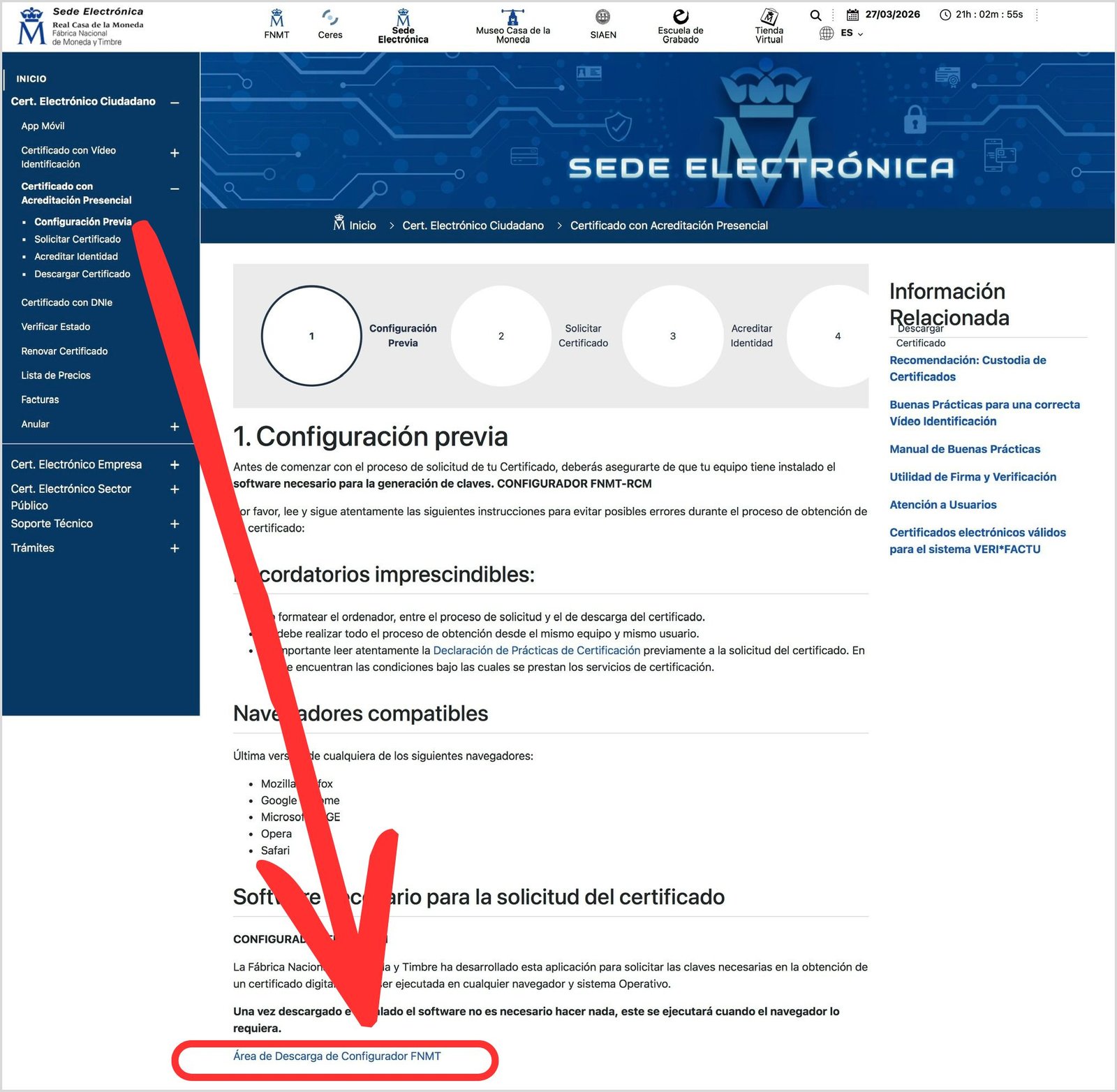
Before applying for the certificate, you need to install a small program called Configurador FNMT-RCM. This software generates the security keys necessary for your certificate. It functions on Windows, Mac and Linux.
Download it from the FNMT electronic office: sede.fnmt.gob.es › Certificados › Persona Física › Obtener Certificado Software › Configuración previa.
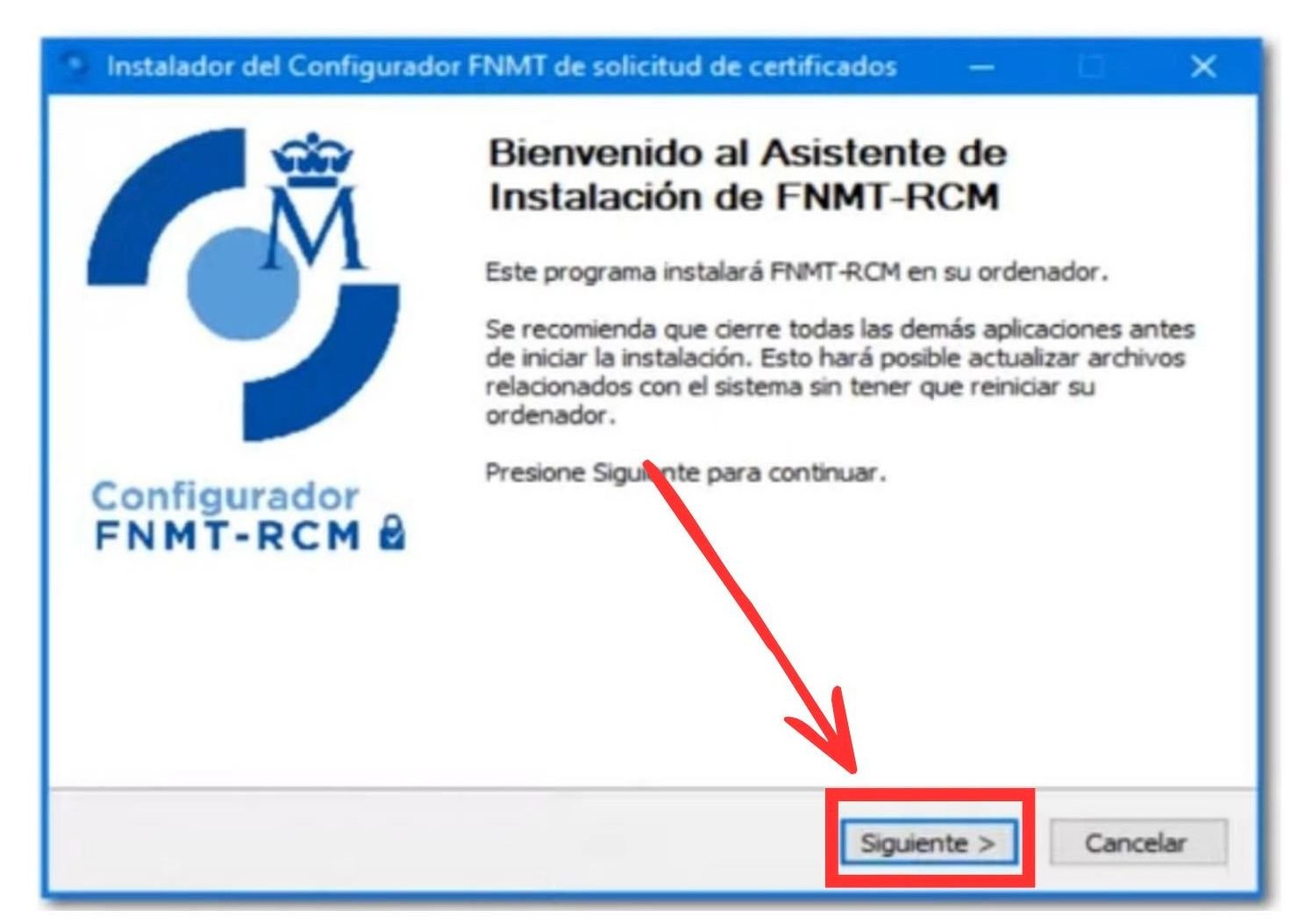
Select the download link corresponding to your operating system — Windows, Mac or Linux — and follow the steps of the installation assistant.
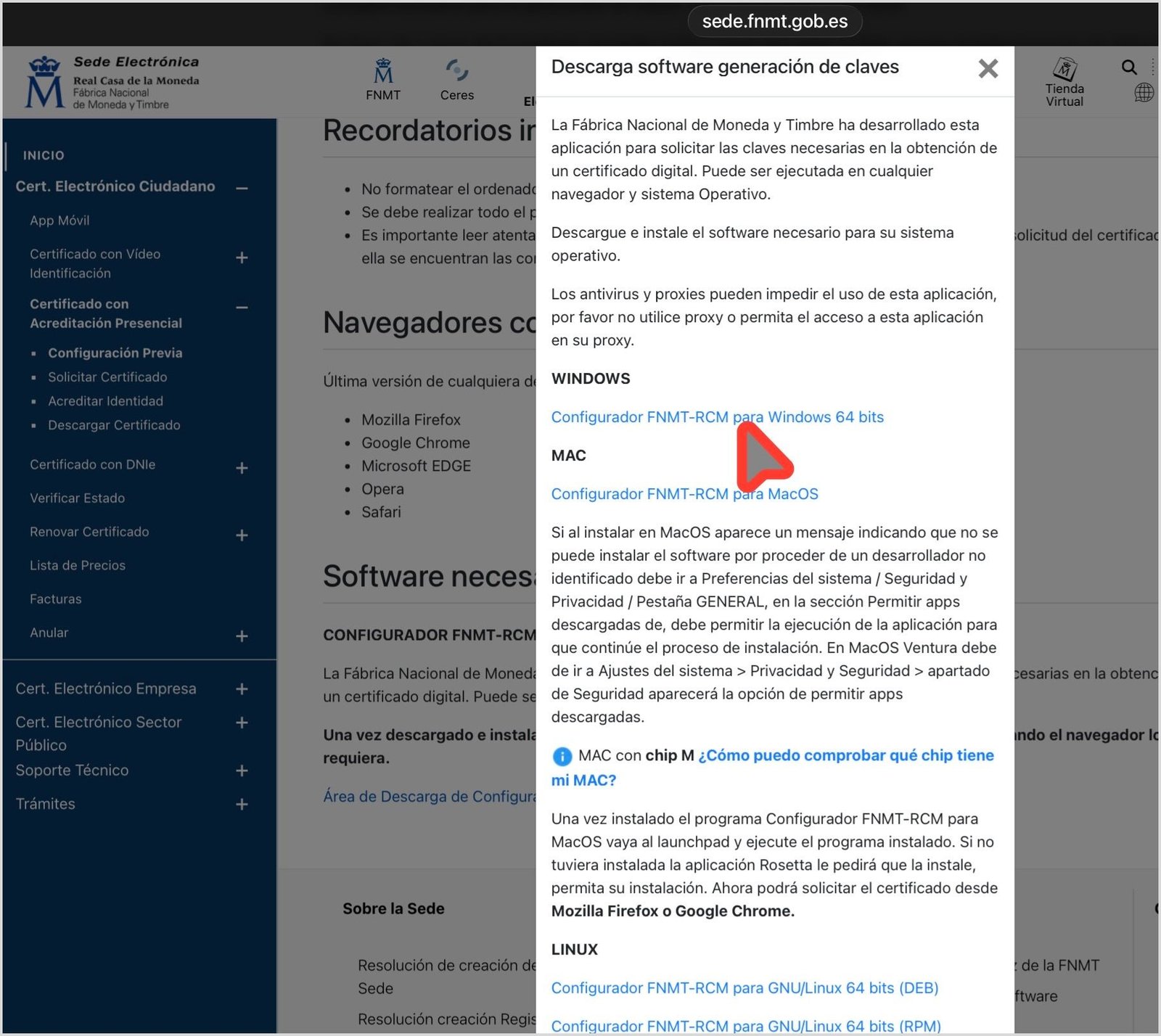
On Mac, you may need to authorise the installation from System Settings › Privacy and Security. Once installed, you do not need to open it manually: it will run automatically when the browser requires it.
We also recommend that you install the AutoFirma application, which many administration websites require in order to function with the certificate, as is the case with the Mercurio platform through which many online immigration applications are submitted. You may download it from firmaelectronica.gob.es.
Step 2 — Apply for the certificate on the website
Complete the form with:
- Your NIE, with 9 characters, adding zeros on the left if necessary.
- Your first surname, exactly as it appears on your identity document.
- Your email address.
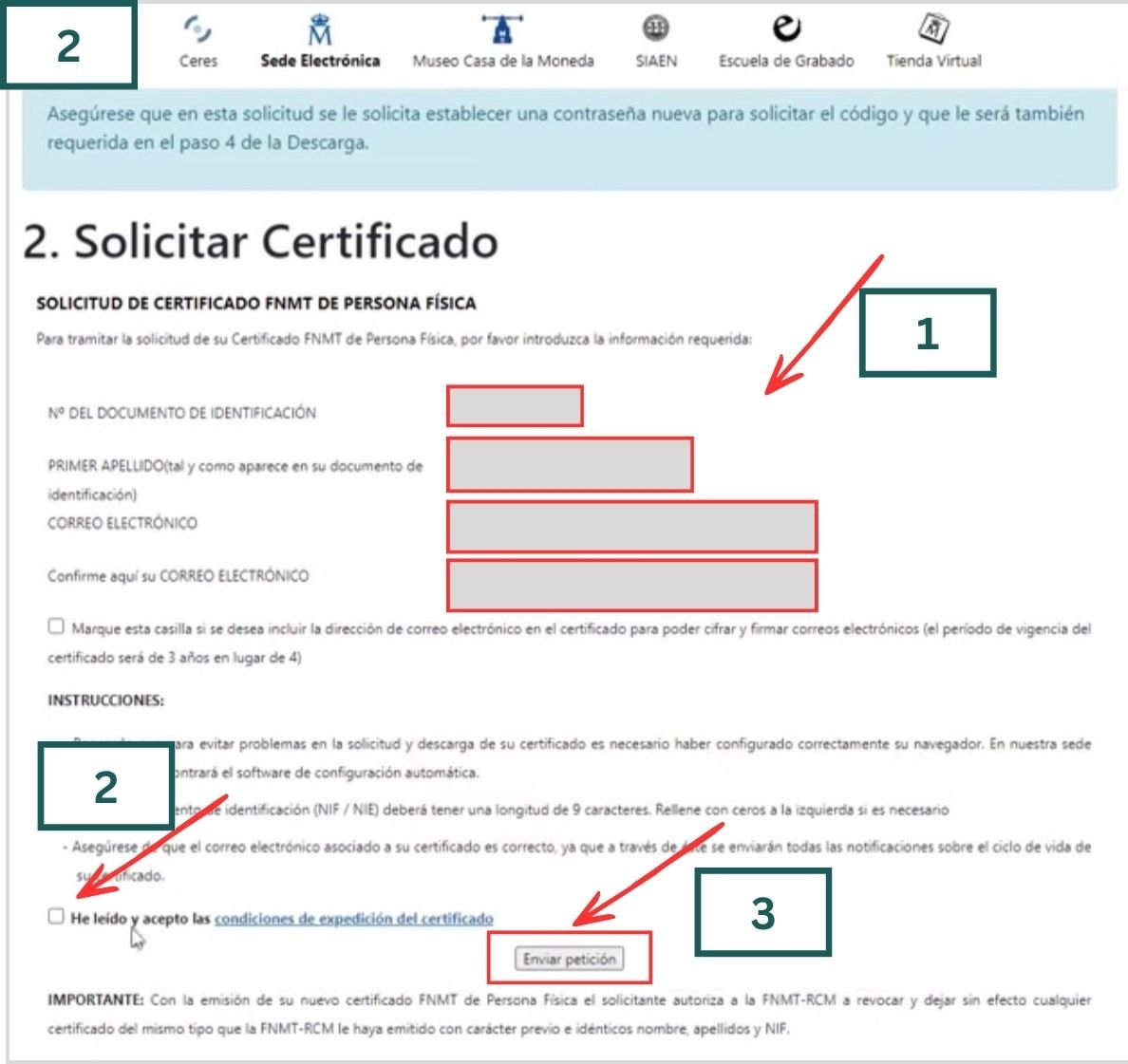
Complete the four fields in the form:
- Field 1: identification document number — the NIE in the case of foreign nationals without Spanish nationality
- Field 2: first surname
- Field 3: email address
- Field 4: repeat the same email address
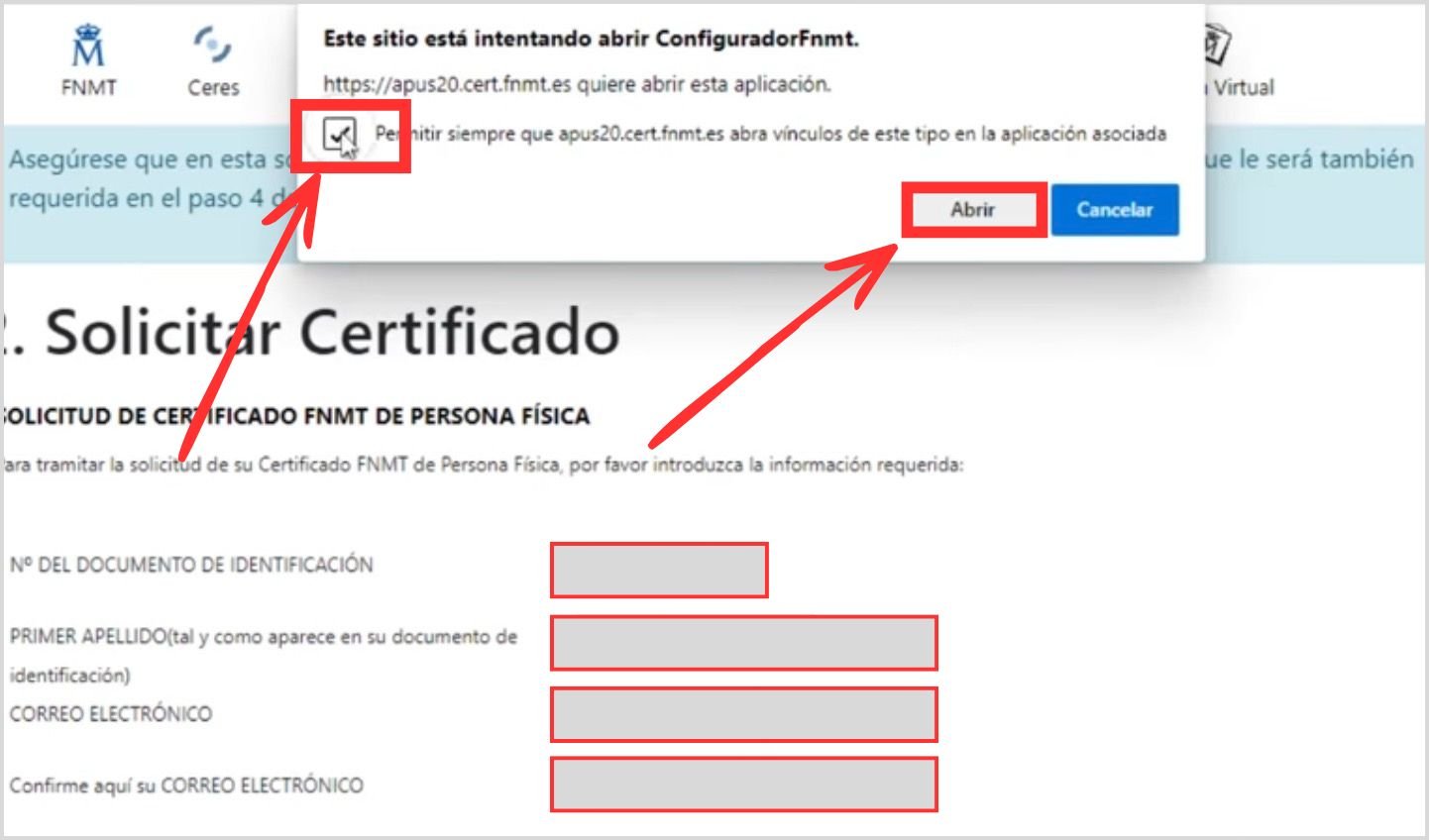
Read and accept the conditions of use. When you click on «Enviar petición», the browser will request permission to open the Configurador FNMT-RCM. In the window that appears, click on «Abrir». If it offers you the option of always permitting access, select it.
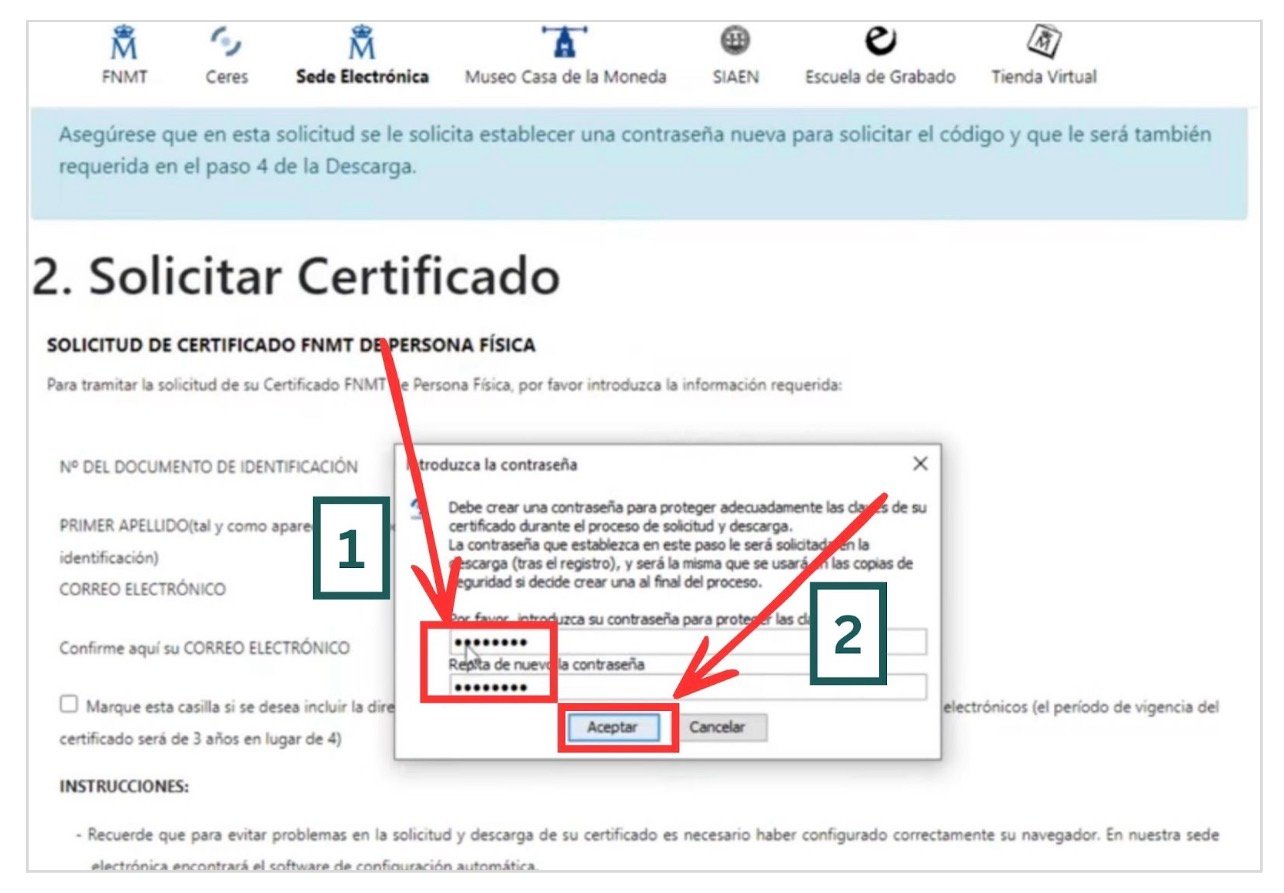
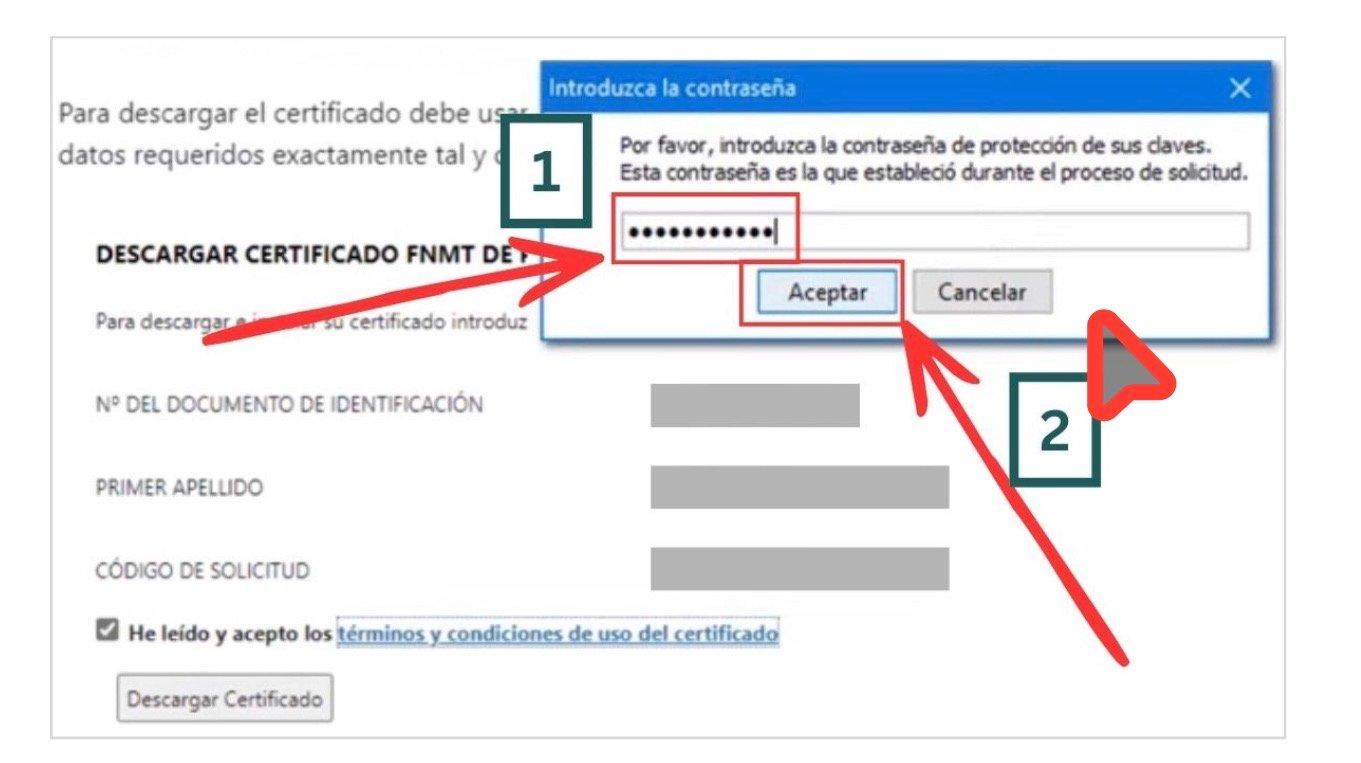
Next, the system will ask you to create a password in order to protect the keys of your certificate. Keep it carefully: you will need it to download the certificate and it cannot be recovered. The same password will also be used for the backup copy.
If everything has gone well, you will see a confirmation message with your details.
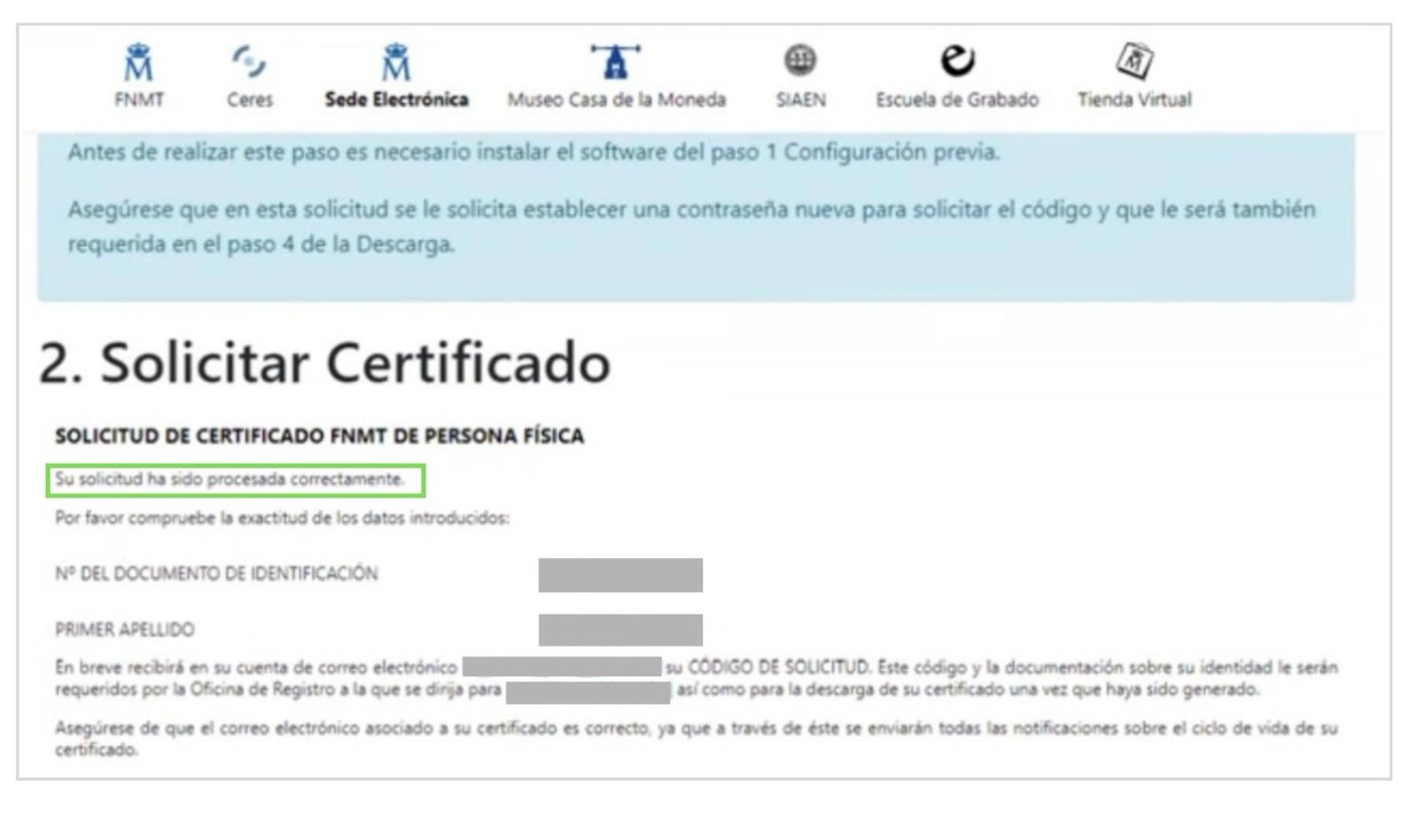
You will receive an email with your application code. Note it or print it: you need it at the office and for the download.
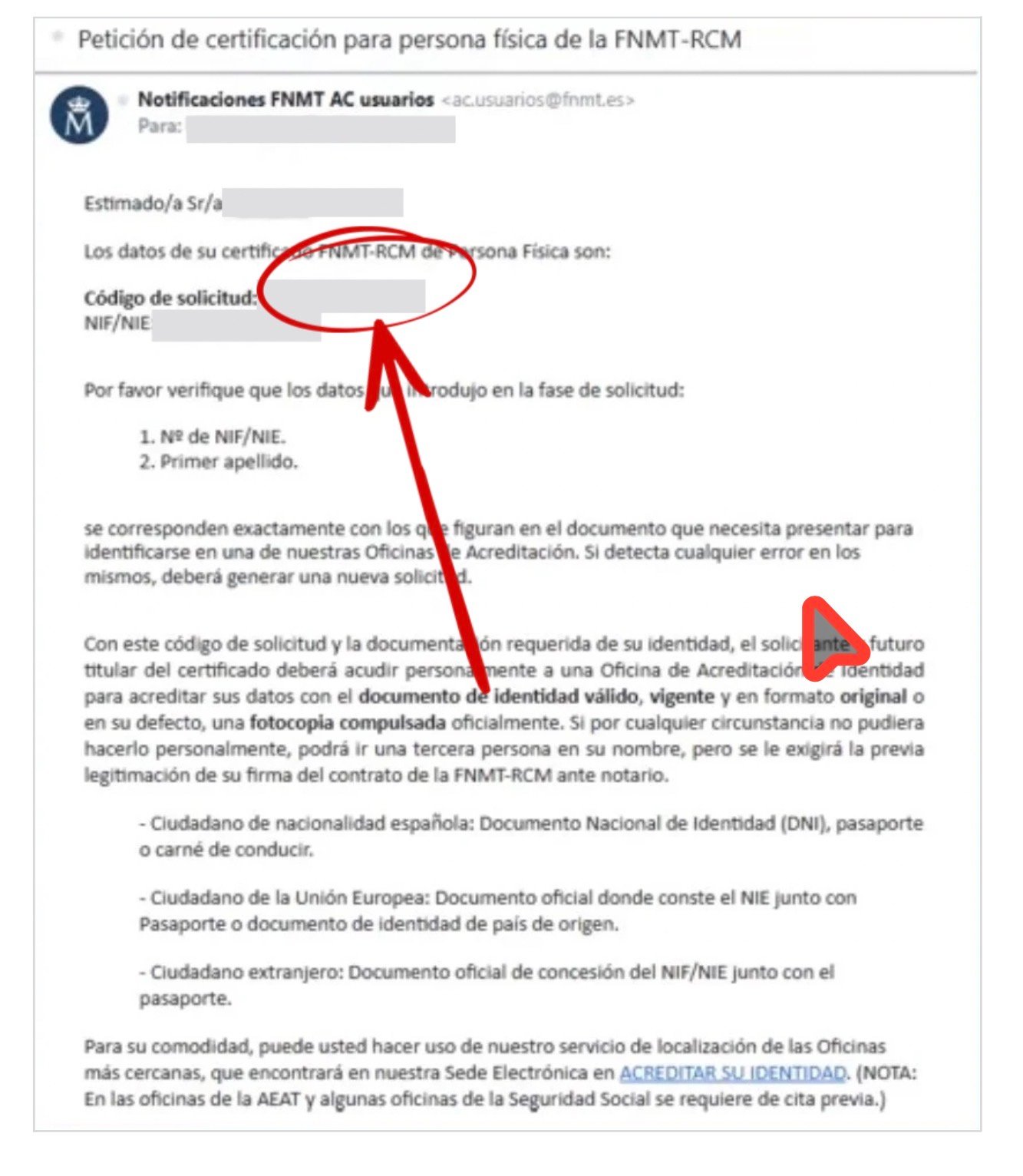
Step 3 — Verify your identity at an office
You must now go in person to an Oficina de Acreditación de Identidad (Identity Accreditation Office) in order to verify that you are the person who submitted the application. The FNMT has more than 2,400 offices throughout Spain, including Social Security offices, Tax Agency (AEAT / Hacienda) offices, municipalities and other bodies.
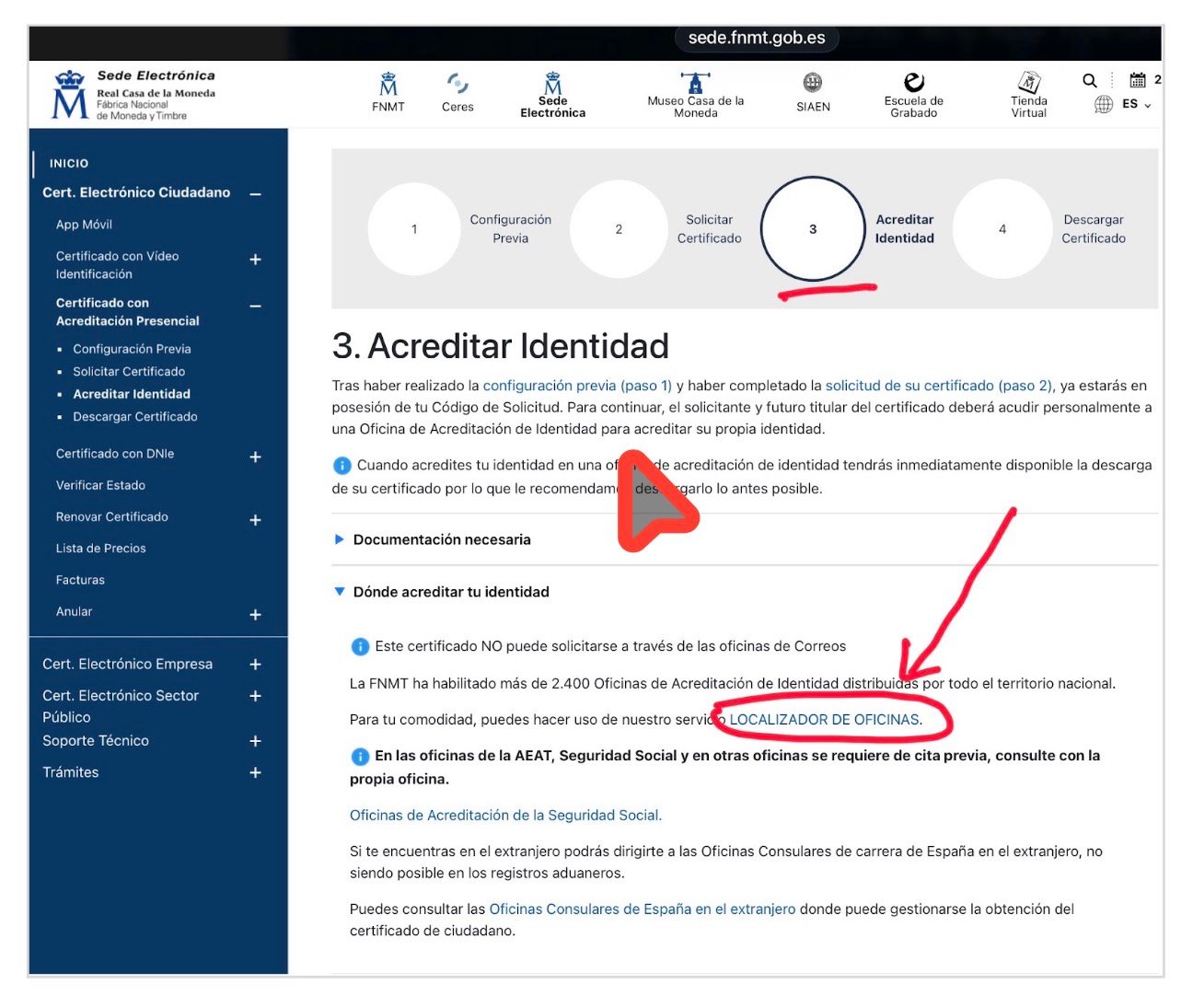
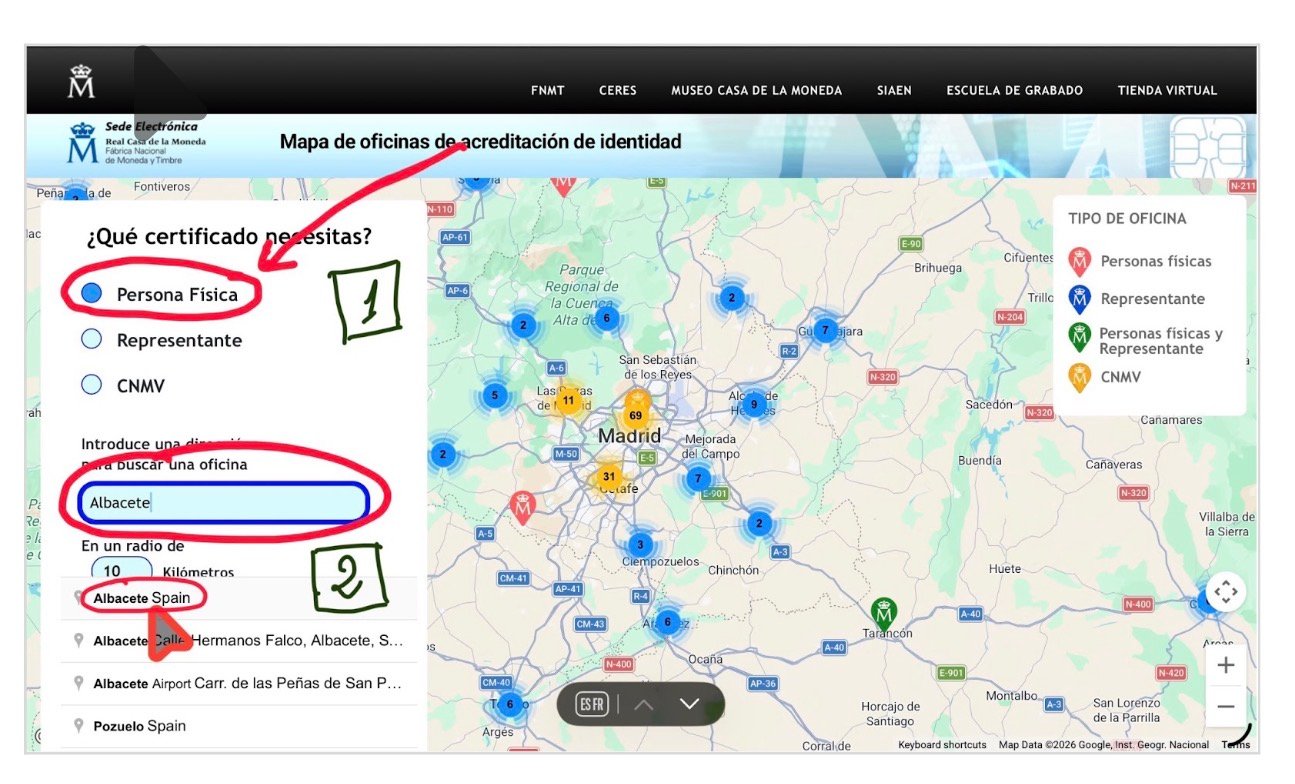
Using the office locator, you may locate the nearest office. Enter your locality in the search field.
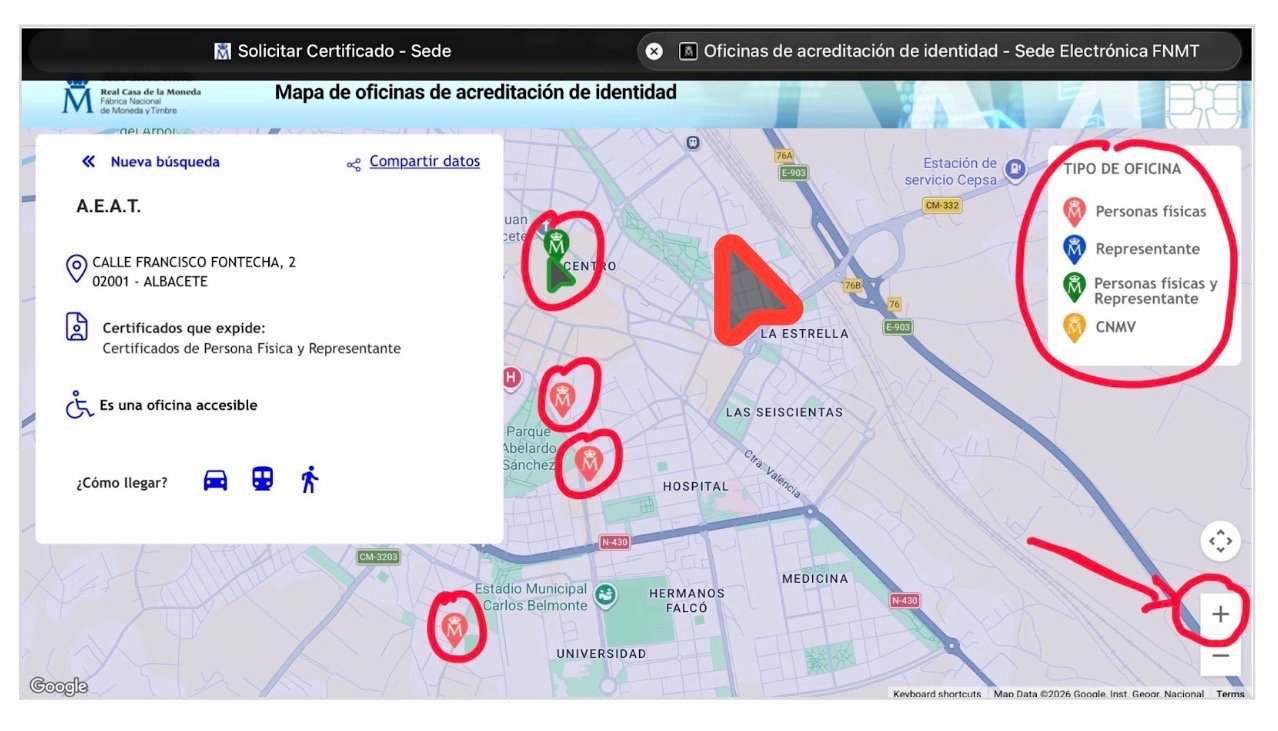
Once the locality has been selected, the map will show the available offices. In the case of Albacete, for example, four accreditation offices appear in different locations. By clicking on each one, the specific body, its exact address, and directions are shown. Bear in mind that a prior appointment is required at AEAT and Social Security offices. Consult the office before going.
Present the following at the office:
- Your application code (the one received by email).
- Your passport.
And one of these documents containing your NIE:
TIE (Tarjeta de Identidad de Extranjero/a, Foreigner Identity Card).
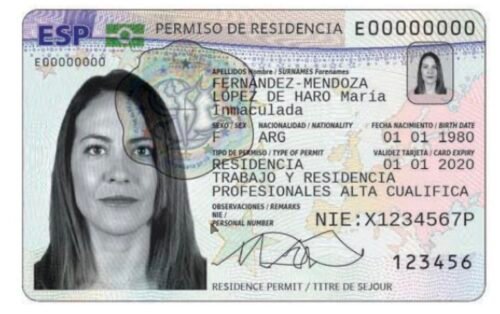
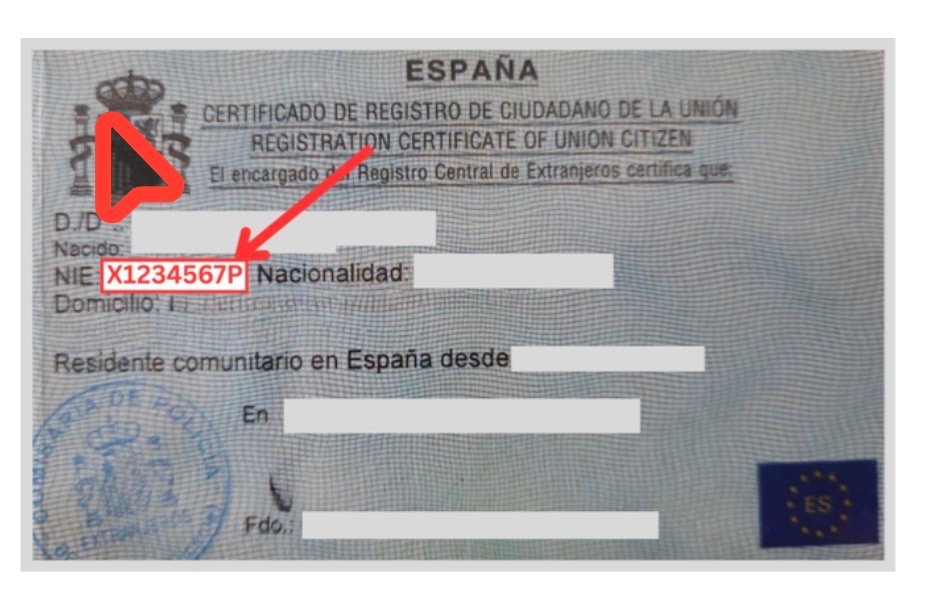
Certificado de Ciudadano de la Unión in which your NIE appears (in the case of the British population, for example).
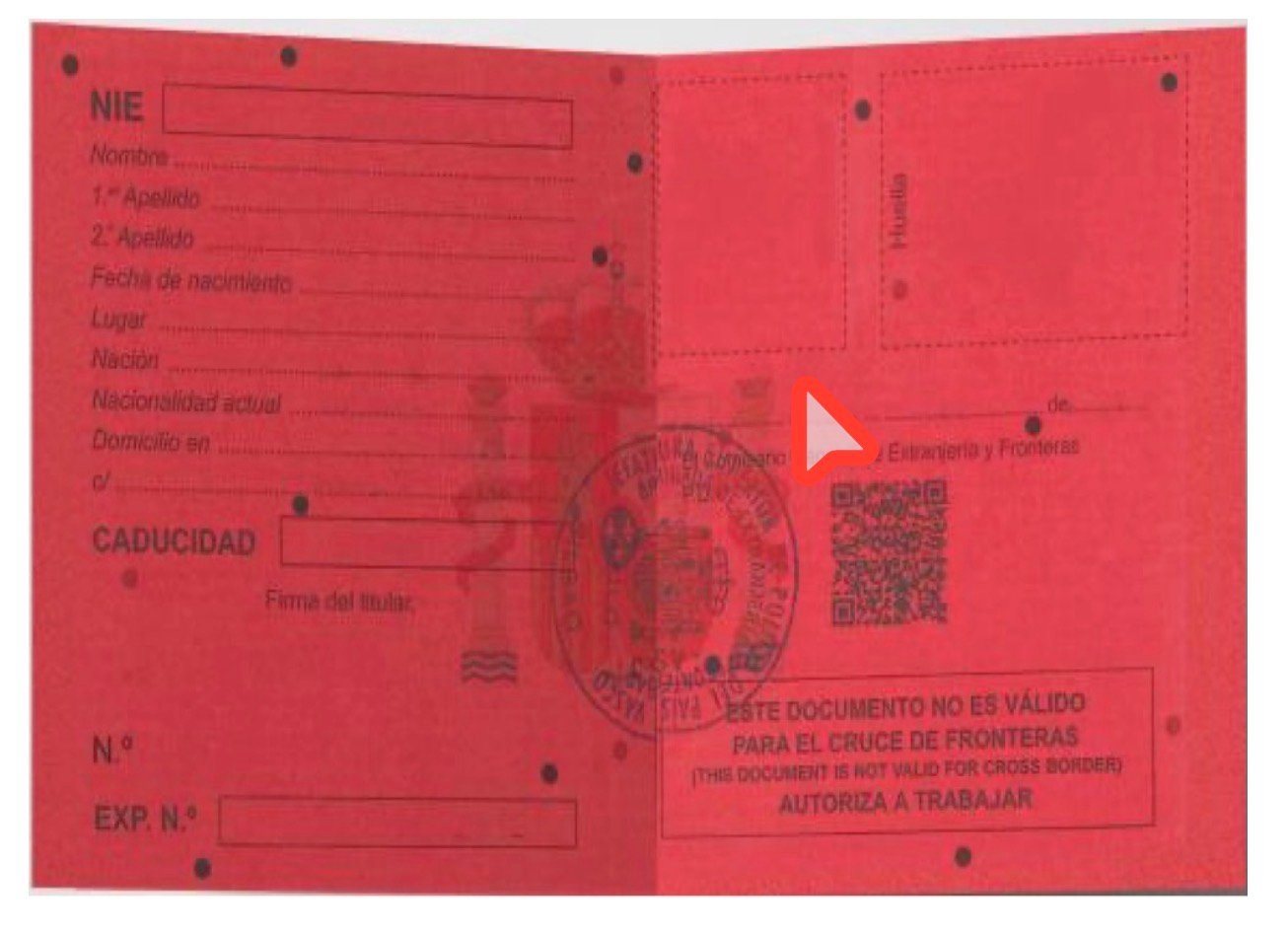
Red, Green or White foreign-national identification card.
Official document granting the NIE — and in the absence of that document or any of the previous ones, it may be possible to try another alternative containing the NIE, for example an Immigration Office decision, whether favourable or a refusal.
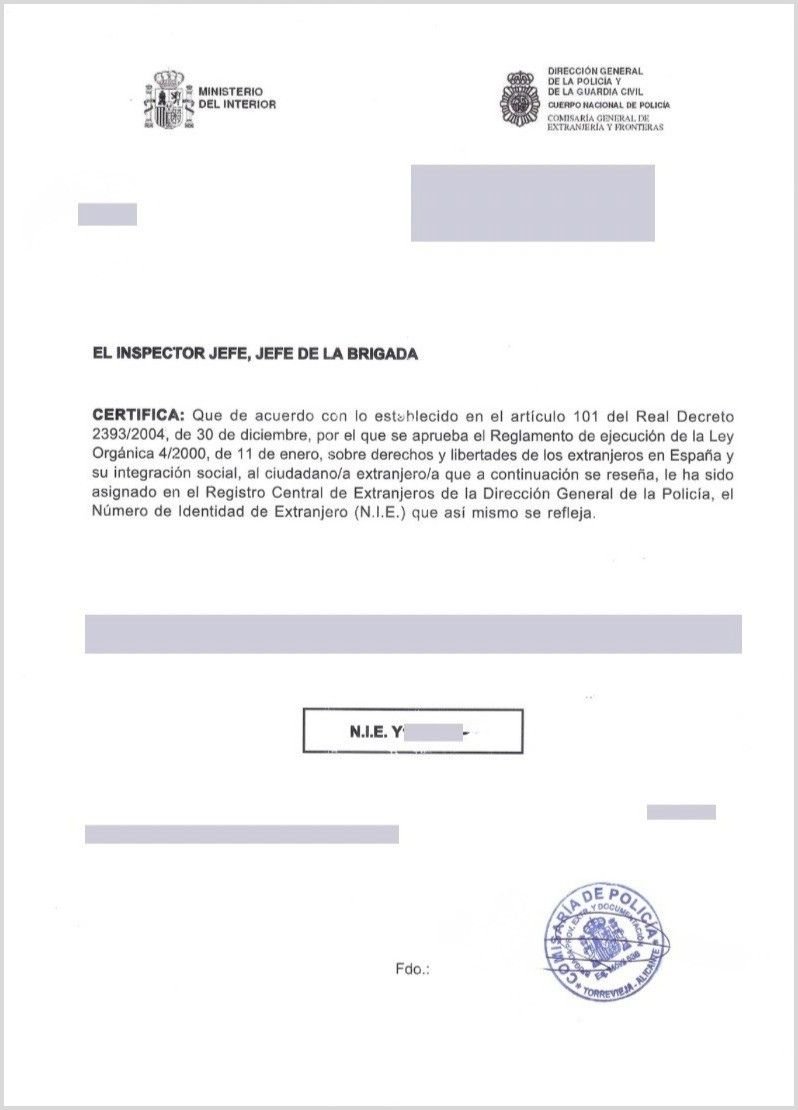
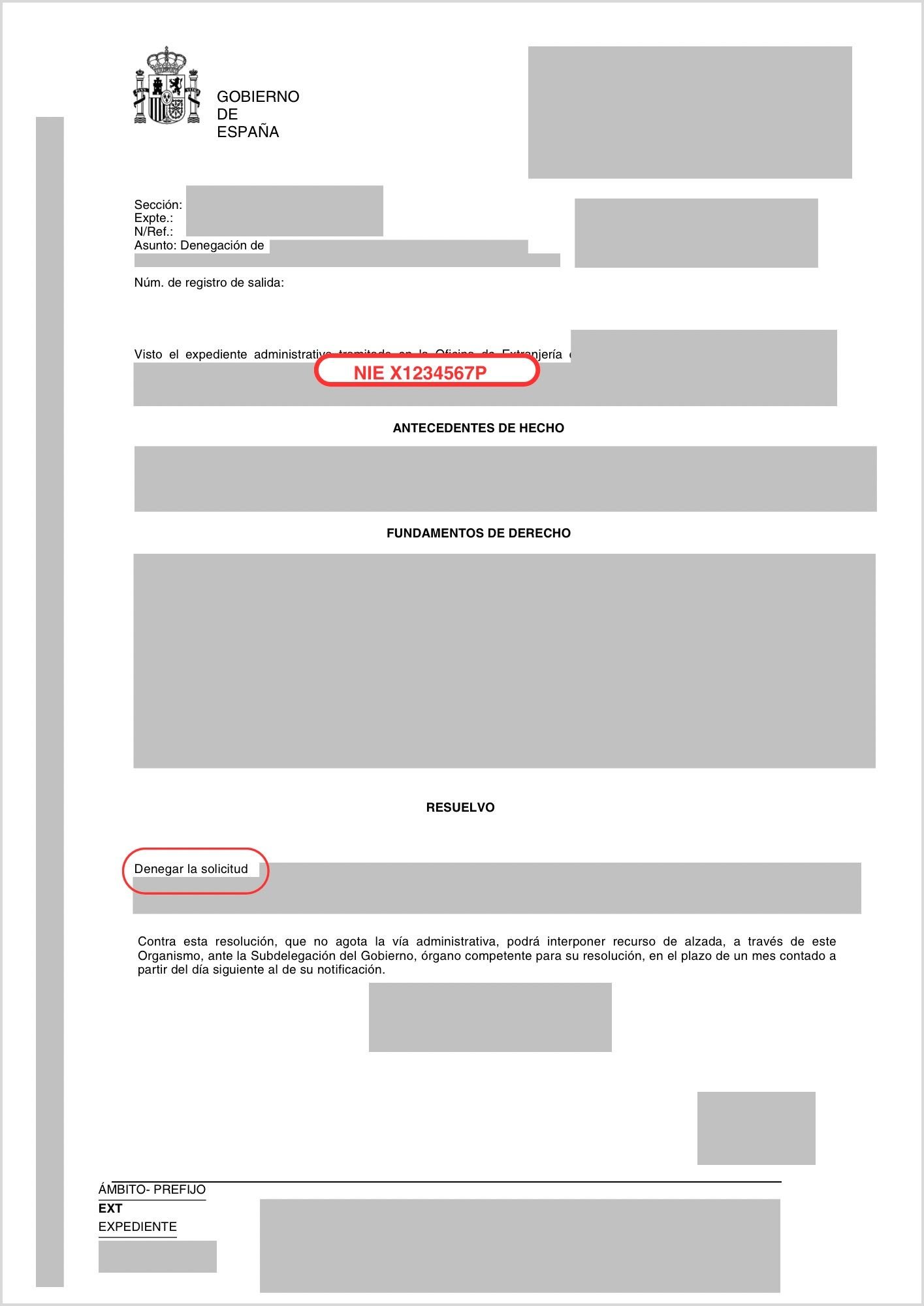
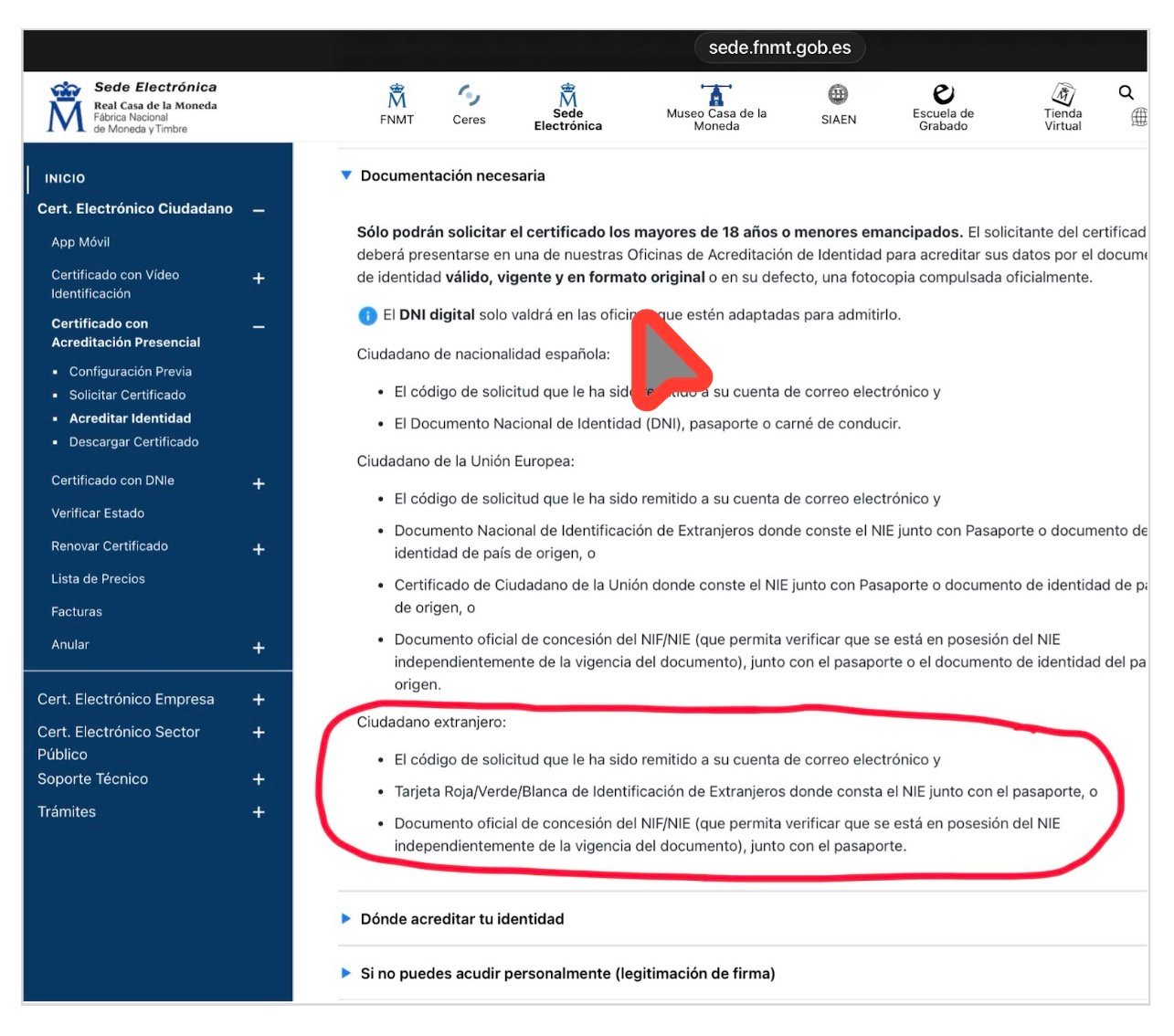
Key point: the FNMT specifies on its electronic office that it accepts an «official document granting the NIF/NIE which makes it possible to verify that the person is in possession of the NIE, irrespective of the validity of the document», together with the passport.
What happens if you do not have that NIE grant document? In that case, it may be possible to try another document containing the NIE — such as an Immigration Office decision, whether favourable or a refusal. In practice, the experience may vary depending on the Accreditation Office. Some may accept that document; others may be more strict. We recommend that you consult the office before travelling there.
FNMT video identification is NOT available for persons with NIE. It may only be conducted with the electronic DNI (DNIe). If you have an NIE, identity accreditation must be in person.
Step 4 — Download, install and create a backup copy
After verifying your identity at the office, your certificate will be available for download. The waiting time may vary depending on the accreditation office you attend.
Enter your NIE, your first surname and the application code. Read and accept the conditions of use, then click on «Descargar Certificado». Remember: you must do this from the same computer, the same browser and the same user account that you used for the application.
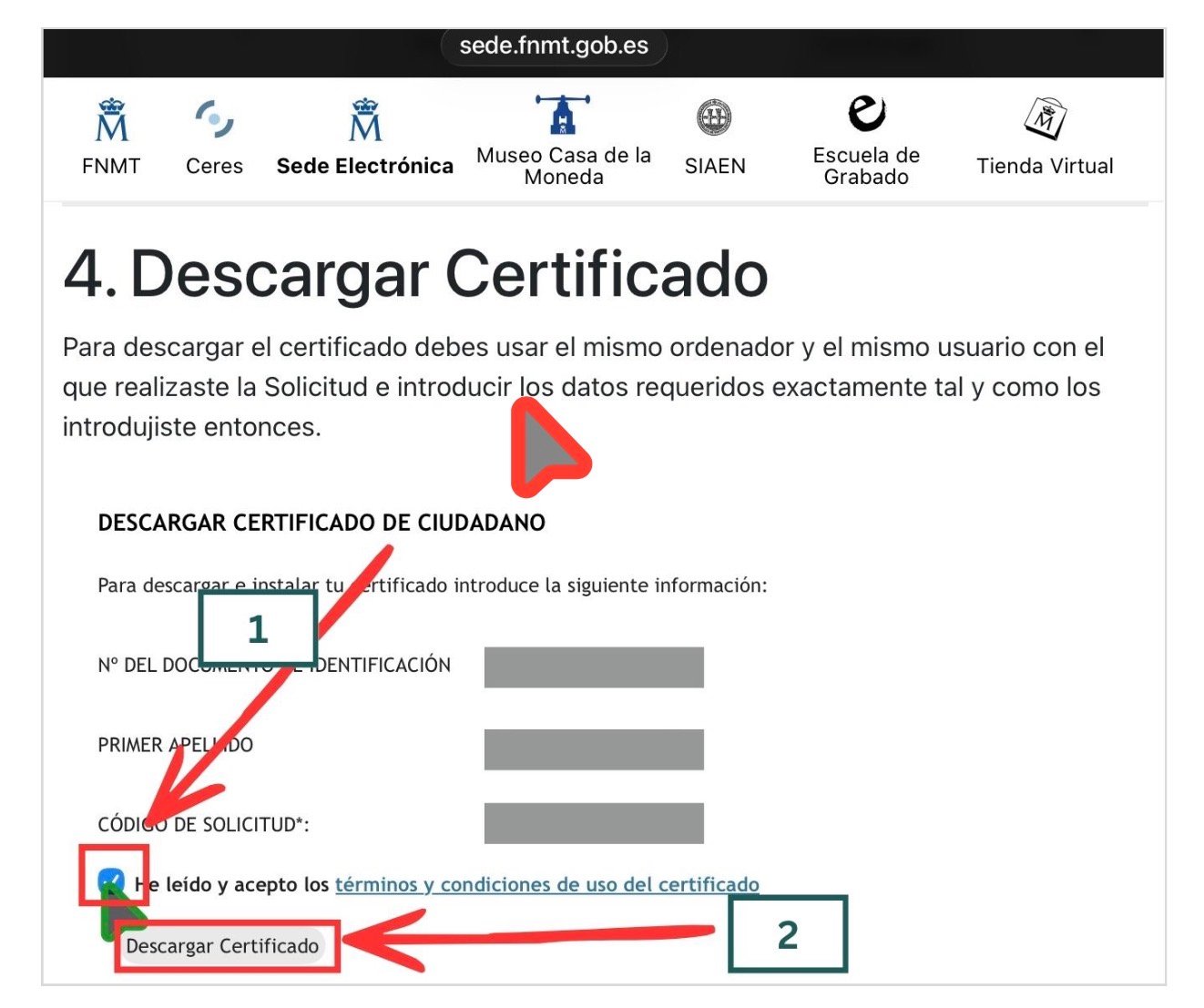
When downloading, you will be asked for the password that you created in Step 2.
During the download, the system will offer you the possibility of creating a backup copy of the certificate. Accept. This step is important: if you format the computer, change device, or the browser updates and loses the certificates, without a backup copy you would have to repeat the entire process from the beginning.
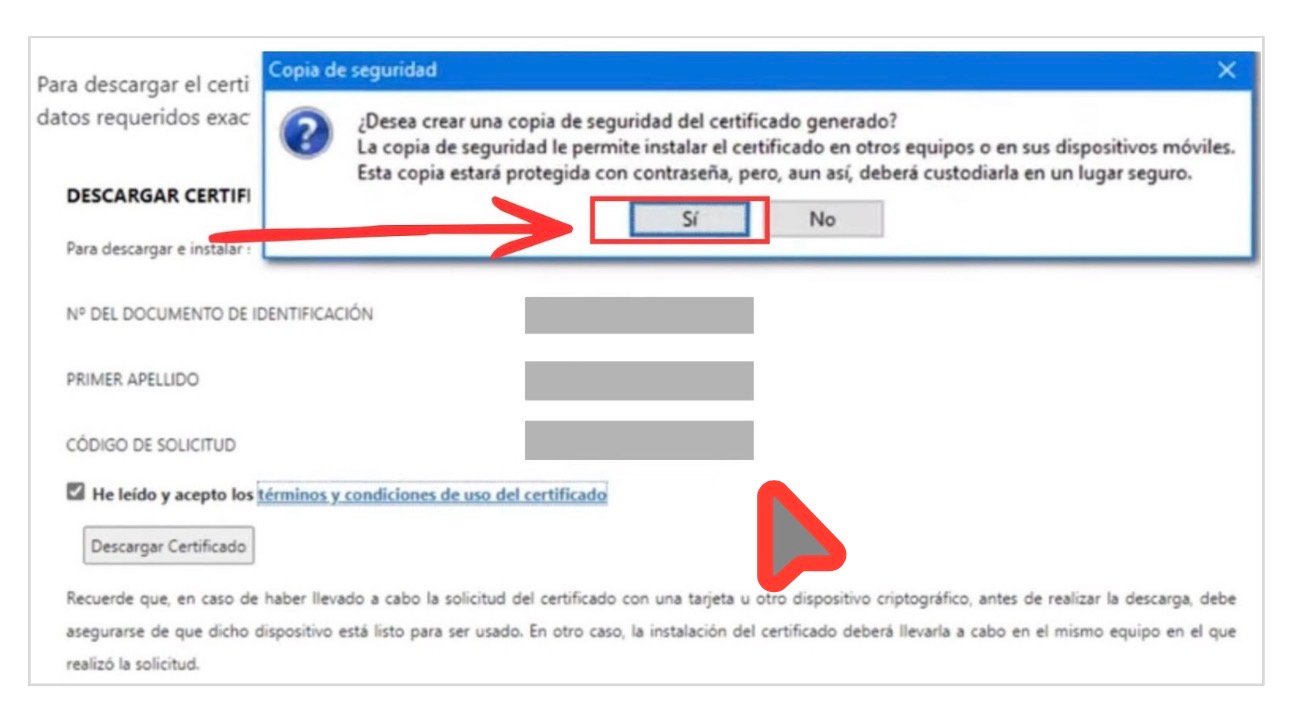
Click «Sí» to create the backup copy. Save the file in a secure place: a USB device, an external disk, or a password-protected cloud service.
If that dialogue does not appear, you may also export the certificate manually:
- In Chrome or Edge: go to Settings › Privacy and security › Security › Manage certificates. Select your certificate and export it with the private key.
- In Firefox: go to Settings › Privacy and security › Certificates › View certificates. In the «Your Certificates» tab, select yours and click on «Back Up».
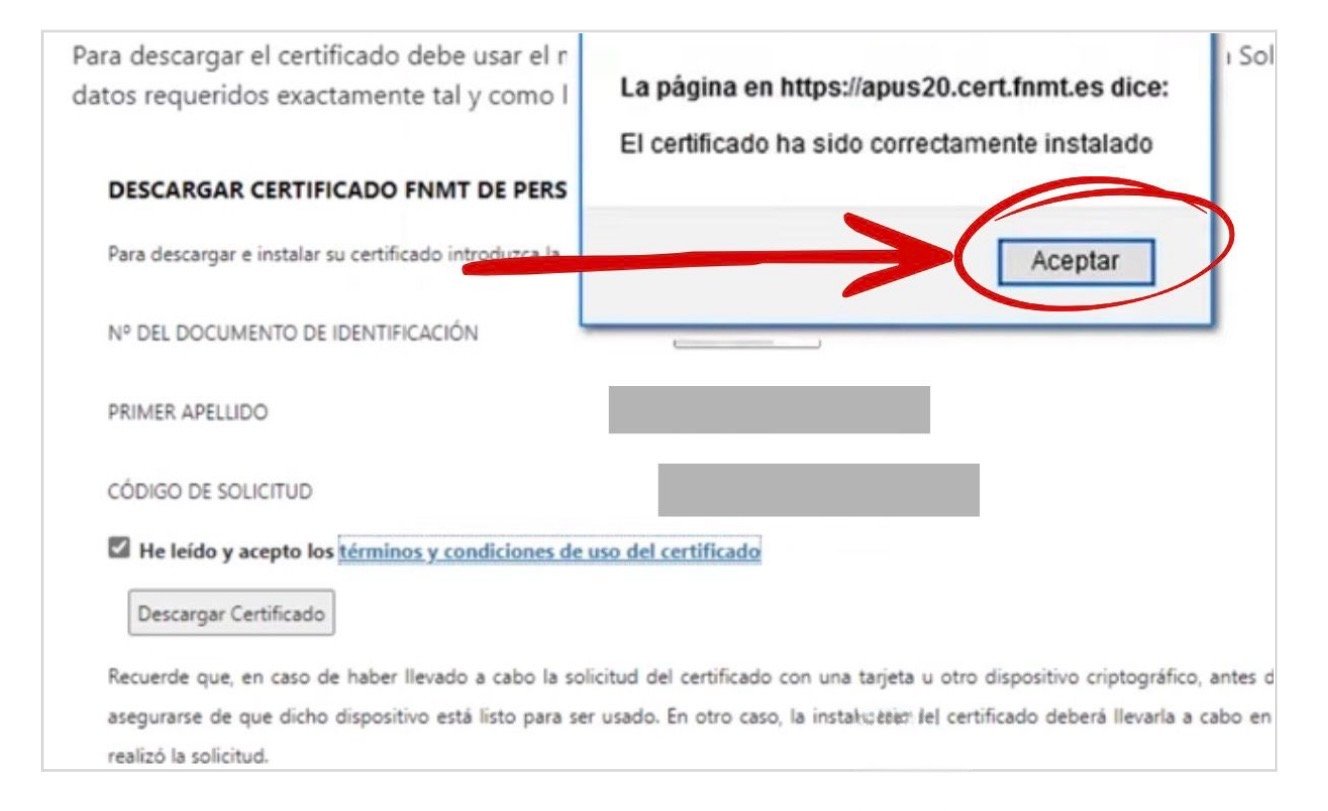
Once the process has been completed, you will see a message confirming the correct installation of the certificate.
Step 5 — Check that it works
To verify that your certificate has been correctly installed, access Mi Carpeta Ciudadana at sede.administracion.gob.es/carpeta/clave.htm. Select the access option with electronic certificate. If you enter correctly and see your data, the certificate is functioning.
And the extraordinary regularisation 2026?
If you are awaiting the extraordinary regularisation 2026, the digital certificate may be especially important. The drafts that have circulated indicate that one route for submitting applications may be online, through the Mercurio platform. If that route is confirmed, having a digital certificate or a valid electronic signature system could make a real practical difference.
As of 25 March 2026, the Real Decreto that will regulate the extraordinary regularisation has still not been published in the BOE. The details concerning the submission channel for applications will be confirmed when the definitive text is published.
When the Real Decreto is published, we shall generate a specific tutorial on how to submit the application through Mercurio. In the meantime, the most prudent course is to have the digital certificate ready.
If you wish to know more about the extraordinary regularisation 2026, which documents to prepare and when the period will open, read our article: Extraordinary regularisation 2026 in Spain: what is known, who is eligible, and what you should do now.
Frequent problems
«It does not allow me to apply for the certificate on the website.» Check that you have installed the Configurador FNMT-RCM and that you are using a compatible and updated browser. Some antivirus programs or proxies may block the application: deactivate them temporarily if necessary.
«It asks me for a password and I do not remember it.» The password is created during the application stage in Step 2 and cannot be recovered. If you have forgotten it, you will have to begin a new application from the start.
«At the office they do not accept my document.» The experience may vary depending on the office. If they do not accept your alternative to the official NIE grant document, try another Accreditation Office (see alternatives in Step 3). You may also consult your municipality, since some collaborate with certification entities and may orient you.
«I have downloaded the certificate but it does not function.» Make sure that you have used the same computer, the same browser and the same user account as in the application stage. If you changed something in the meantime, it is possible that you may need to repeat the process.
If you have reached this point and completed all the steps: congratulations. You now have a tool that gives you direct access to the Spanish administration from your home, without queues and with much greater autonomy. Use it. And if you know somebody who may need it, share this tutorial.